Conditions: Display a Different Question depending on ‘Yes’ or ‘No’”.
Objective
- Create a logical branching in LimeSurvey.
- Display different questions based on the answer to an initial question.
- Use the "Condition" feature to manage conditional paths.
Why use conditions?
- To personalize the path for each respondent based on their answers.
- To avoid asking irrelevant questions to certain participants.
- To create dynamic questionnaires adapted to the context.
1. Creating the base question (Q1)
This question determines the logical branching. It is generally a Yes/No question.
- Create a new question in your question group.
- Select the question type (for example, "Dropdown list" or "Radio buttons").
- In the "Code" field, enter a simple code to identify this question (example:
INTERVENTION). - Add the answers with their codes:
- Answer:
Yes> Answer code:Y - Answer:
No> Answer code:N
- Answer:
- Save the question.
Note: The question code (
INTERVENTION) and the answer codes (Y,N) are essential. You will use them to write the conditions.
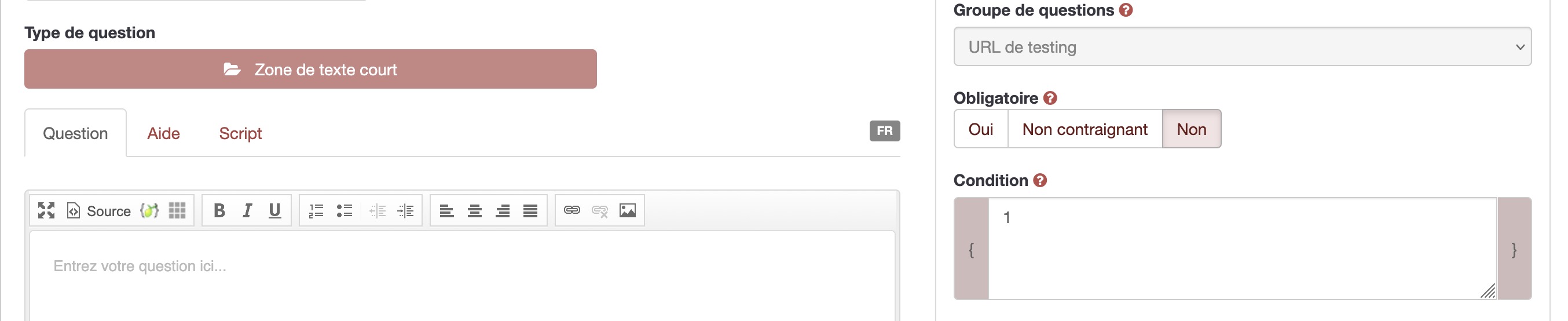
2. Creating the question for the "Yes" answer (Q2_Yes)
This question only displays if the user answered "Yes" to Q1.
- Create a new question right after Q1.
- Configure the content of this question (text, type, answers).
- Click on the "Settings" tab in the question options.
- Locate the "Condition" field in the general settings.
- Enter the following equation in the "Condition" field:
INTERVENTION == 'Y'Explanation: This equation means "Display this question only if the answer to the
INTERVENTIONquestion equals the answer codeY(Yes)".
- Save the Q2_Yes question.
3. Creating the question for the "No" answer (Q2_No)
This question only displays if the user answered "No" to Q1.
- Create a new question right after Q2_Yes.
- Configure the content of this question (text, type, answers).
- Click on the "Settings" tab in the question options.
- Locate the "Condition" field in the general settings.
- Enter the following equation in the "Condition" field:
INTERVENTION == 'N'Explanation: This equation means "Display this question only if the answer to the
INTERVENTIONquestion equals the answer codeN(No)".
- Save the Q2_No question.
4. Testing the logical branching
Verify that your condition works correctly.
- Click on the "Preview survey" or "Preview question group" icon.
- Answer "Yes" to question Q1. You should see only the Q2_Yes question appear.
- Restart the test and answer "No" to Q1. You should see only the Q2_No question appear.
Tip: If the questions appear as expected, your logical branching works perfectly.
5. Troubleshooting
The condition does not work or all questions are displayed
Solution: Verify that you are using the answer codes (
Y,N) and not the answer text (Yes,No). Also check that you used the double equal sign==.
Conditional questions never display
Solution: Make sure that single quotes
'properly surround the answer code. The correct syntax is:INTERVENTION == 'Y'and notINTERVENTION == Y.
Syntax error in the condition
Solution: Check the case (uppercase/lowercase) of the question code and answer codes. LimeSurvey is case-sensitive:
INTERVENTIONis different fromintervention.
6. Best practices
- Use short and explicit codes for your questions (for example,
Q_BASE,INTERVENTION). - Document your answer codes in an external file to facilitate maintenance.
- Systematically test each branch after its creation.
- Avoid ambiguous answer codes like
1,2which can be confused with numerical values.
Need help?
For any difficulty, contact the LimeSurvey team via: Cellule.Web@ulb.be