Custom Scales and Randomization.
This guide explains step by step how to create scales with custom options and set up randomization for different experimental conditions in LimeSurvey.
Part 1: Creating a Scale with Custom Response Options
In this example, we will create a scale with 4 questions and a 6-point response scale, from “6 - I like it very much” to “1 - I do not like it at all.” You can adjust the number of questions, responses, and anchor points as needed.
Step 1: Select the Question Type
To create an 8-point scale with your own text choices, you must choose the “Array” question type.
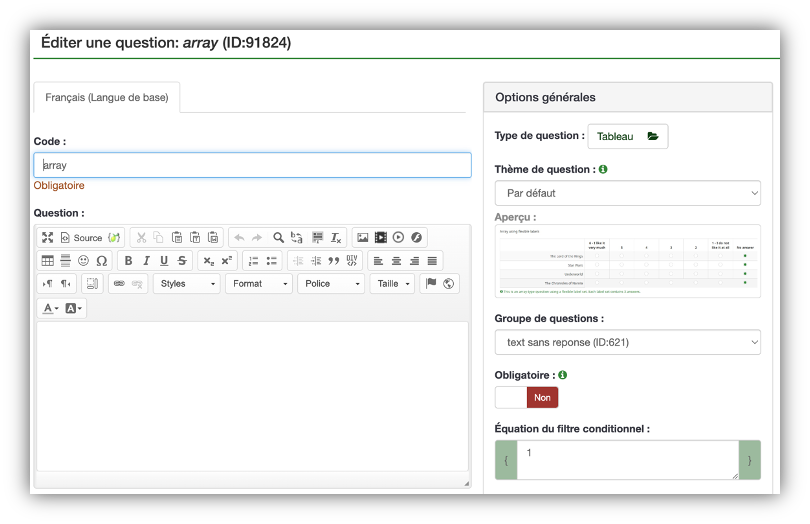
Step 2: Access the Question Summary
Once you’ve created this question type, you can add general instructions in the “question” field and you must add the subquestions and response options.
To add subquestions and response options, select “Question Summary” from the question list.
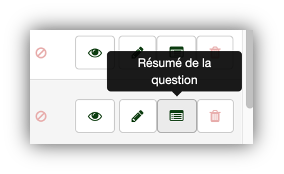
Step 3: Edit Subquestions
- Click on “Edit Subquestions”

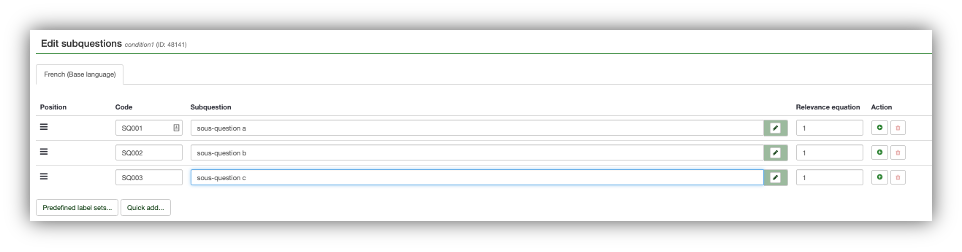
- Use the “Quick Add” option to add all your questions at once
- Simply copy the list of questions (without answers) into the window that opens, with one question per line
Note: Make sure the question codes are correct! You can also rename these codes to something more meaningful than the default alphanumeric sequence suggested by LimeSurvey.
Step 4: Manage Display Order
- Random order: simply put the same number in each “Relevance equation” box
- Fixed order: enter a different number in each box
Step 5: Set Up Response Options
- Click on “Edit Answer Options”
- Again, you can add the list all at once
- You can edit the response codes
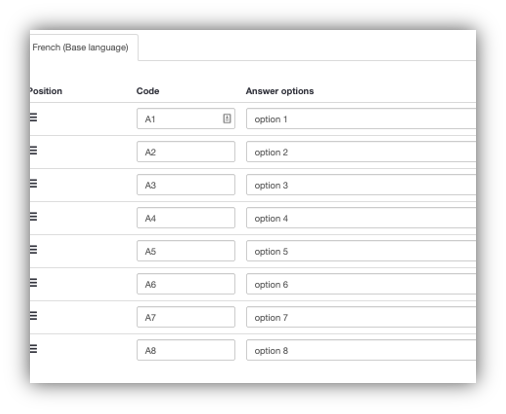
Step 6: Final Check
Important: Make sure there are no empty responses or subquestions, as these will also be displayed and may distort your survey’s layout, especially on smartphones or tablets.
Warning! If you edit the question and response codes, make sure you keep track of which question they belong to, and choose logical and understandable codes.
Part 2: Randomization Across Different Experimental Conditions
To randomly assign different versions of certain questions to 2 (3, 4, 5, ...) different participant groups, follow the procedure below.
Step 1: Create a Random Variable
1.1 Basic Setup
- Select the “Group by Group” display mode
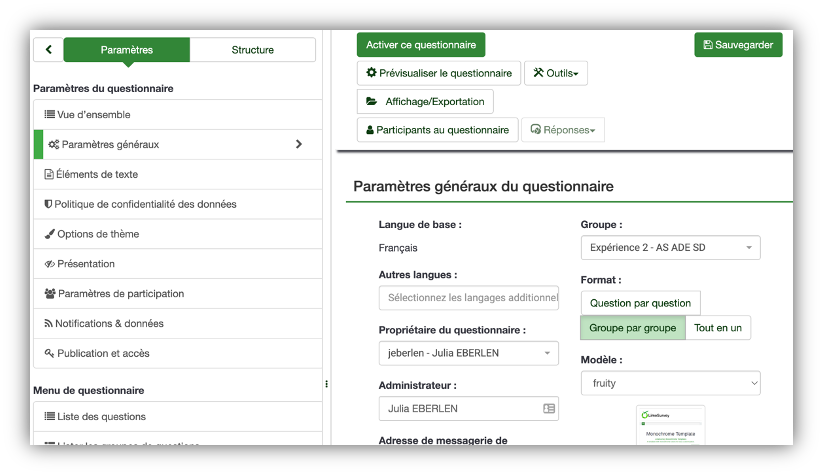
- Create the groups of your survey (you can add more groups later!)
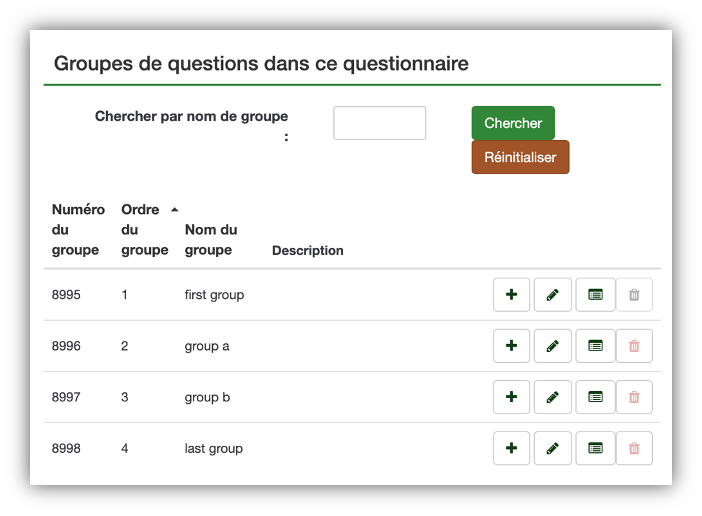
1.2 Create the Hidden Equation Question
- Add a question in the first question group (usually the consent group)
- In this example, we name this question “zauberlehrling”
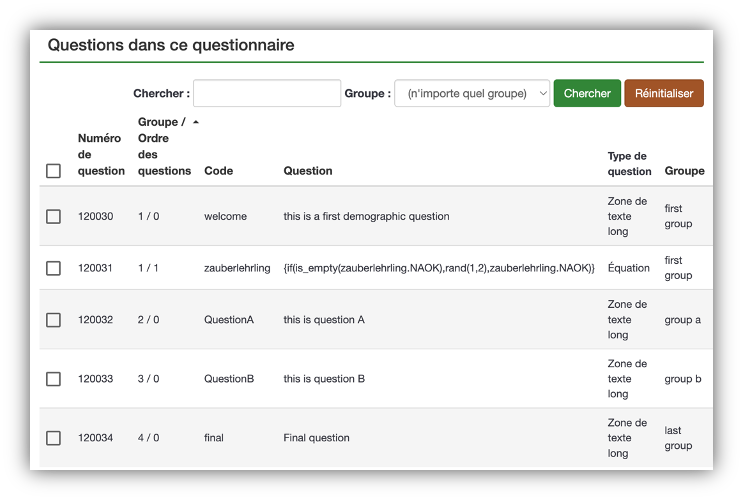
Important: If you choose a different name, don’t forget to replace “zauberlehrling” throughout this example with your chosen name!
1.3 Equation Setup
- On the right, select “Equation” as the question type under “Predefined Questions”
- Copy this formula into the “question” field:
{if(is_empty(zauberlehrling.NAOK), rand(1,2), zauberlehrling.NAOK)}
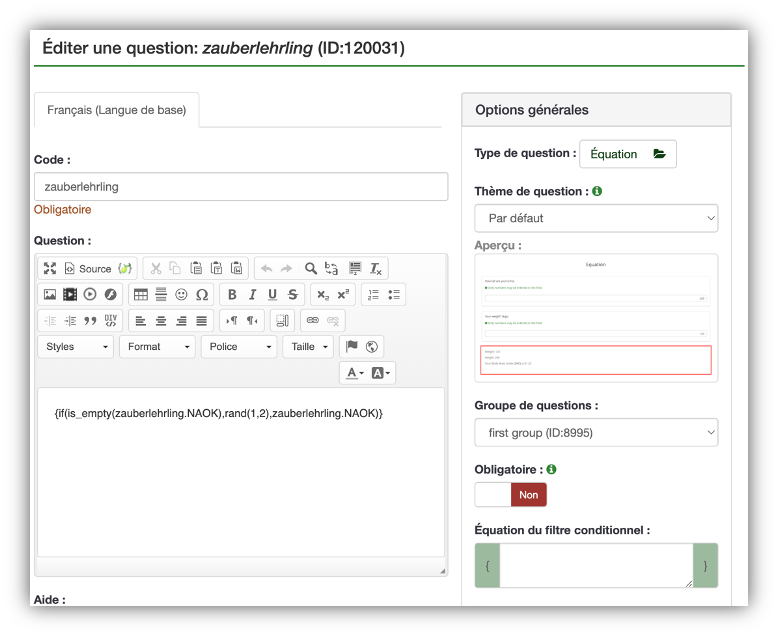
Explanation: “If the question zauberlehrling doesn’t yet have a value, assign it a random number between 1 and 2 (inclusive). If it already has a value, do nothing.”
Note: “NAOK” tells LimeSurvey it’s okay if there’s no existing value from another source.
1.4 Adjust for More Conditions
If you want more than two conditions, replace:
- 1,2 with 1,3 (for three conditions)
- 1,2 with 1,4 (for four conditions)
- and so on, depending on the number of conditions you need
1.5 Final Question Setup
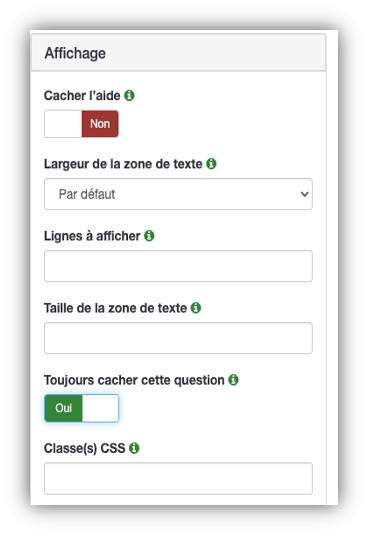
- This question must not be mandatory
- You must hide it
1.6 Error Checking
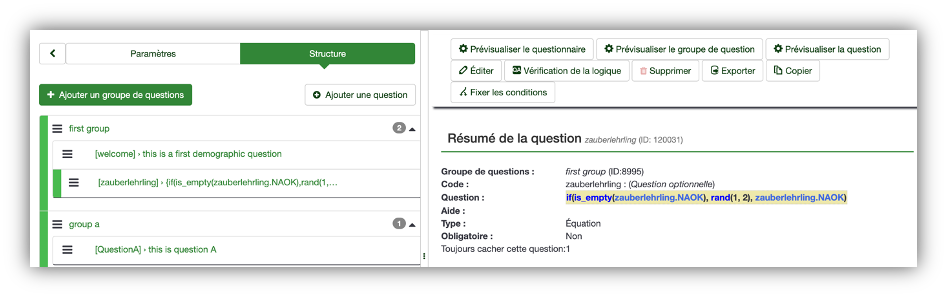
To test if everything works, click on the question summary. Under “Questions:” nothing should appear in red.
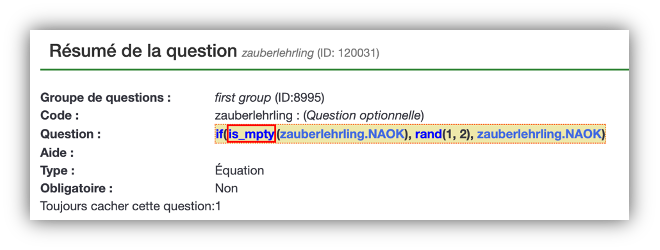
Common Errors:
- Spelling mistake: for example, “is_emty” instead of “is_empty”
- Syntax error: missing parenthesis – the entire formula will appear highlighted in red
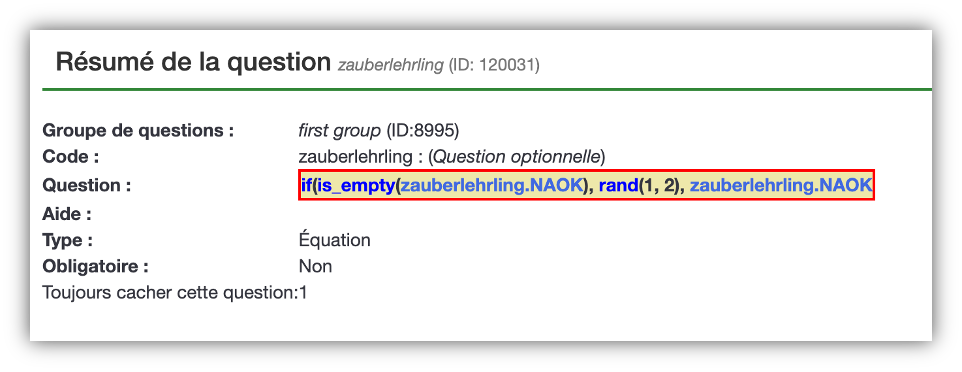
Note: It’s normal that the curly brackets {} added in the question text do not appear here. They tell LimeSurvey that this is an equation.
Step 2: Assign Questions to Their Random Condition
2.1 Prerequisites
To assign questions that belong to one of the two (three, four, five...) conditions, those questions must be:
- In separate question groups from the group containing the hidden question
- Placed after the randomization question (in this example, the “zauberlehrling” question)
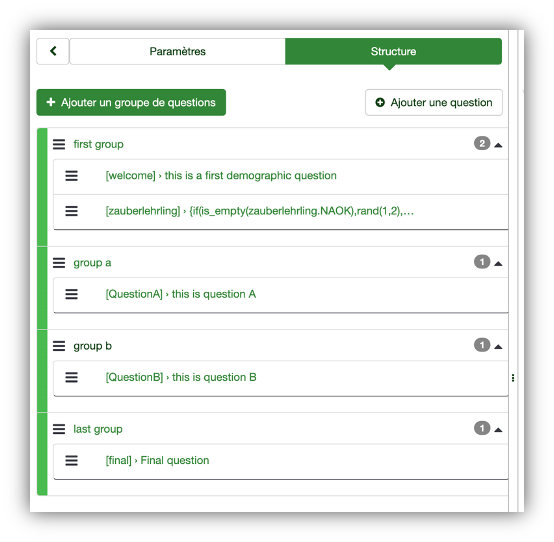
In our example, the questions in group A are assigned to condition 1, while those in group B are assigned to condition 2.
2.2 Set the Conditions
- Create your question in each group
- Once saved, add a condition
- You’ll find this option by selecting “Question List” then “Question Summary”
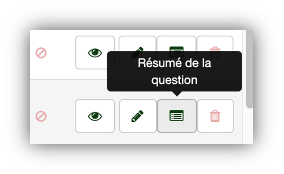
- You’ll then see the “Set Conditions” option
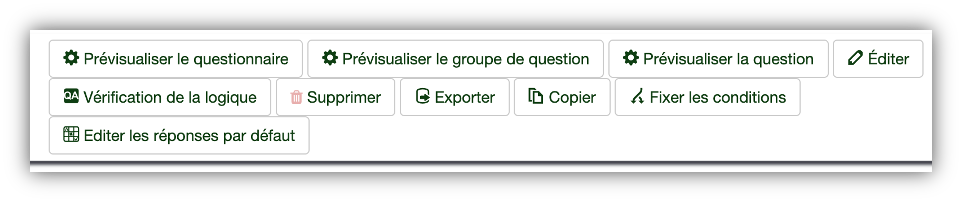
2.3 Add a Condition
- At the bottom of the page, add a condition
- Select the question “zauberlehrling” (= your equation question) as the “previous question”
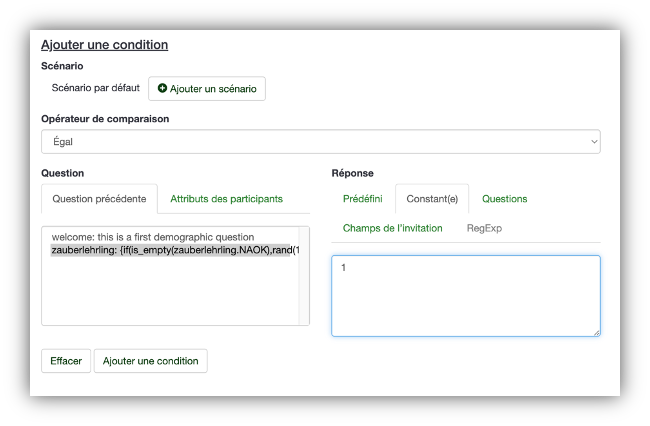
- By default, LimeSurvey selects “equals,” meaning the response must equal your chosen value
- Select “Constant” under “Answer”
- Enter “1” in the input field (for the first condition)
- Click “Add Condition”
2.4 Repeat for Other Conditions
- Repeat the same procedure for other questions in this group
- For the second condition, repeat the steps but enter “2” in the constant field
- If you have more than two conditions, repeat with constants “3”, “4”, etc.
Don’t forget to save each step!
Additional Tips
Work Optimization
- Copy scenarios: You can duplicate a scenario to save some clicks
- Question types: When using questionnaires, prefer question types that support subquestions ⇒ randomization is much faster
- Progressive approach: If your survey isn’t created yet, start with one question per condition, test it, and add more questions once everything works
Troubleshooting
- No randomized question displayed: The problem likely comes from the hidden equation question. If it doesn’t work correctly, no value is assigned to the participant, and the randomized question won’t be triggered
- Post-editing: You can change the order of questions and groups. If your survey is already complete and you want to add randomization, add the hidden equation question and place it in the first group
Note: By default, any new question is always added at the end!
Complex Conditions
You can combine conditions. For example, if you have questions that should be shown to participants in conditions A and C, but not in B and D, you can define this using scenarios.
Example:
- Add a second scenario (like the one already described above)
- Add the “OR” operator between the two scenarios
- ⇒ LimeSurvey will display the question to participants in either condition A or C
What to Do If Problems Occur?
Common Issues and Solutions
“The equation formula appears in red”
Solution: Check syntax – spelling mistake (is_empty) or missing parenthesis. Any structure error highlights the whole formula in red.
“No randomized question appears”
Solution: The issue usually lies in the hidden equation question. Make sure the formula works and that the question is hidden but not mandatory.
“Display issues on mobile/tablet”
Solution: Remove any empty questions or answers in your scale setup.
“I want to change the order after creation”
Solution: You can reorganize questions and groups. Note: new questions are added to the end by default.